
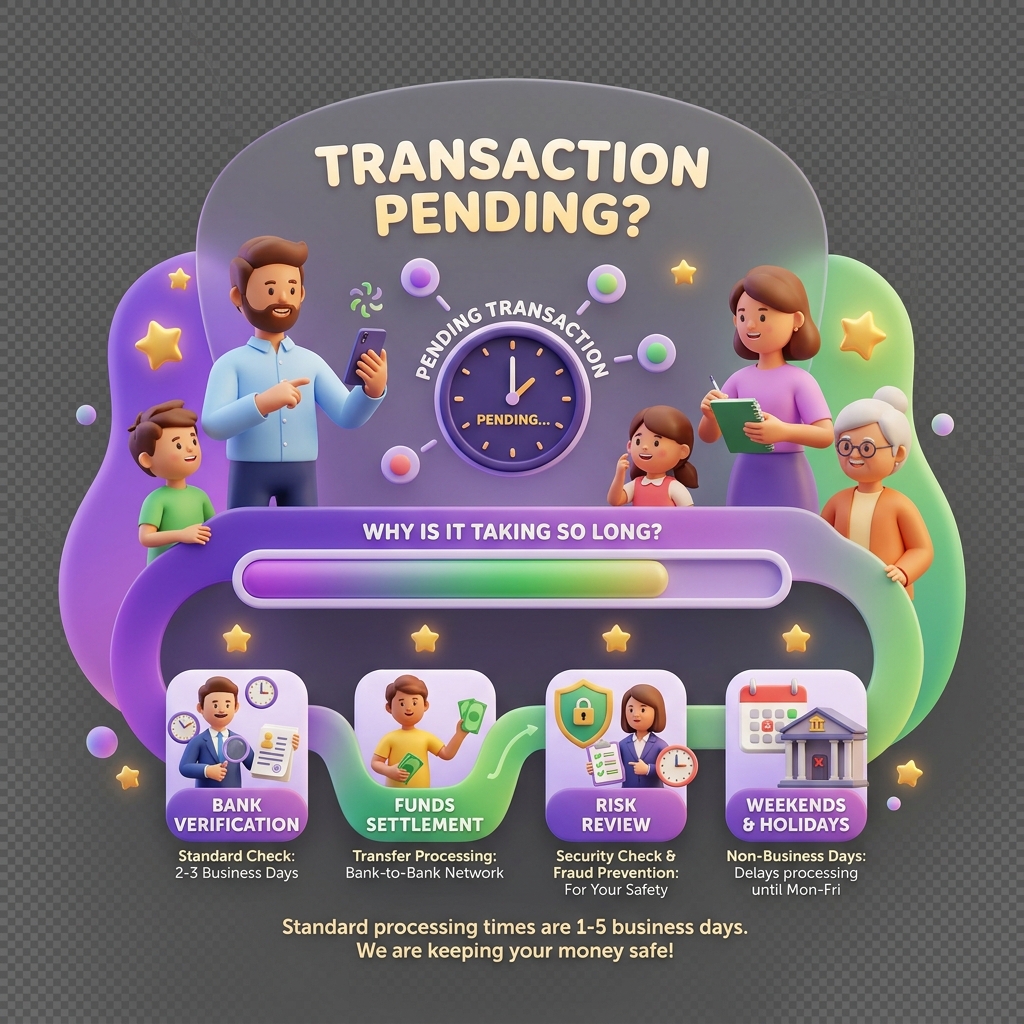
Why a Transaction Stays Pending Too Long
When a child’s spending request or allowance transfer sits in a Pending state longer than expected, it usually means the transaction was not approved — by you, a co-parent, or a connected bank — before the platform’s timeout window closed. This article explains the exact failure path and how to resolve it.
Symptoms
- A transaction remains in Pending status for more than 10–15 minutes.
- The child receives no funds despite a successful-looking request.
- You receive no approval notification on your device.
- The transaction log shows a
TIMEOUTorAPPROVAL_EXPIREDstatus code. - Bank-linked transactions (e.g., mobile money pull payments, linked your local currency wallets) show a pending debit that never settles.
What Causes This
1. Approval timeout not met
KiddyCash sets a universal approval window of 1 hour (60 minutes) on each child-initiated or ledger transaction. If the transaction is not approved or declined before this window closes, it is automatically marked as Expired to maintain ledger integrity. Push notifications may have been delayed, silenced, or blocked by your device’s notification settings.
2. Bank integration handshake failure
If your family account is connected to a bank or mobile money provider — such as mobile money or a local your local currency-denominated bank account — the integration layer must confirm available balance before approval is completed. A failed handshake at this stage can freeze the transaction in pending. See what’s new in bank integrations and the deeper technical breakdown of bank integrations for context on how this layer works. If the integration itself is broken, check our article on why an integration connection fails.
3. KYC/KYB verification block
If your account or a linked business profile has an incomplete or rejected verification, outbound transactions will stall at the compliance check. This is a silent block — the transaction appears pending but will never proceed. Review the details on why verification gets rejected to diagnose your KYC or KYB status before retrying.
4. Duplicate transaction code collision
Each transaction is issued a unique transaction code. In rare edge cases — typically during rapid successive requests — a code collision can cause the second transaction to hang while the system resolves the conflict. This is more common in schools or businesses using KiddyCash’s bulk allowance campaigns.
How to Resolve It
Step 1 — Inspect the stuck transaction directly.
Navigate to the transaction detail page using your family and transaction identifiers:
https://kiddy.cash/family/:family_id/transaction/:transaction_id
Replace :family_id and :transaction_id with your actual IDs, found in Settings → Family Profile and the transaction log respectively. The status field will show the exact failure code.
Step 2 — Check your approval notification pipeline. Go to Settings → Notifications and confirm that transaction approval alerts are enabled for your device. On Android (common across your city and other major global cities where KiddyCash is widely used), battery optimisation frequently kills background push delivery.
Step 3 — Verify your bank integration is healthy. In Settings → Connected Accounts, check that your linked mobile money or bank account shows a green connection status. A yellow or red status means the integration needs re-authentication. Re-connect and then retry the transaction.
Step 4 — Confirm your KYC/KYB status is clear. Under Settings → Verification, review whether any documents are flagged. A pending or rejected verification blocks all outbound transfers silently.
Step 5 — Void and resubmit.
If the transaction is stuck in APPROVAL_EXPIRED or TIMEOUT, void it manually from the transaction detail view and ask the child to resubmit the request. Do not attempt to approve a timed-out transaction — the approval action will fail silently.