
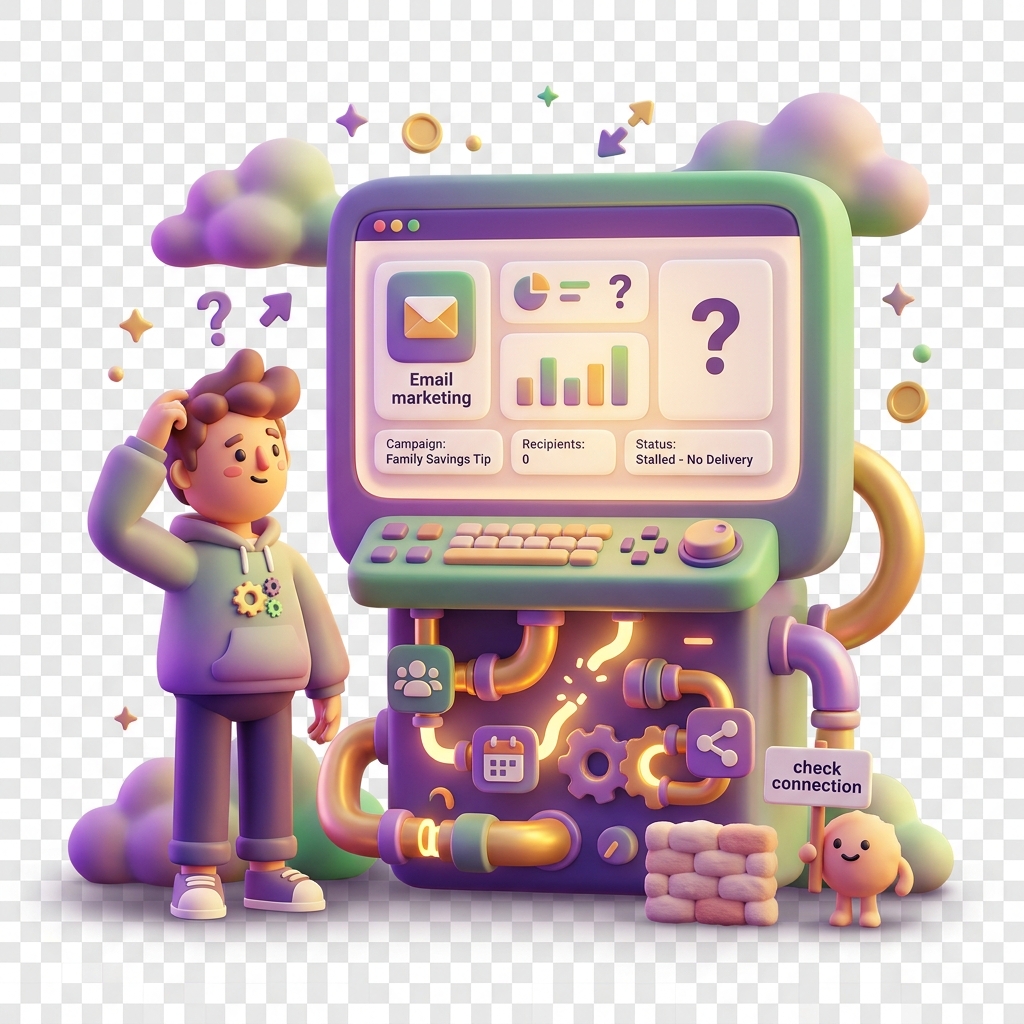
Why a campaign is not reaching any recipients
Even a well-crafted campaign can deliver zero messages if the underlying configuration is off. This guide walks you through the most likely reasons your campaign is showing no deliveries and how to fix each one.
Symptoms
You may be dealing with this issue if you notice:
- Delivery count stays at 0 after a campaign has been active for several hours
- The campaign shows a status of Running or Scheduled but no recipients appear in the delivery report
- No transaction activity or badge triggers are firing for the campaign period
- your local currency spend against the campaign remains flat
Common causes
1. Targeting filters are too restrictive
The most frequent cause. When you stack multiple filters — age range, school, wallet balance threshold, city — the intersection of those conditions can drop to zero users. For example, a campaign targeting families in your city, with children aged 6–8, whose wallets hold over the equivalent of 500, in your local currency and who completed a transaction in the last 7 days may match no one in your current audience.
2. Campaign status is paused or pending approval
A campaign sitting in Pending Review or manually paused will not dispatch any messages. This is easy to miss if you set up the campaign and assumed it went live automatically.
3. Delivery channel is misconfigured
If the selected channel — push notification, in-app message, or SMS — is not enabled for your account tier or the recipient segment has opted out of that channel, delivery silently fails. Campaigns targeting kids’ wallets specifically require that the parent or guardian has enabled notifications on their linked account.
4. Schedule window has passed or not yet started
A campaign with a narrow schedule window (for example, a flash promotion tied to a weekend) may have already expired, or the start time may be set in the future without your realising it.
5. KYB hold on your business account
If your business KYB verification is incomplete or flagged, outbound campaign delivery may be suspended. This can happen after a document re-submission request or a compliance review.
How to fix it
Step 1 — Review your campaign configuration directly. Open your campaign at https://business.kiddy.cash/campaigns/{campaignId} and check the Audience, Schedule, and Channel tabs in sequence.
Step 2 — Loosen your targeting filters. Remove filters one at a time and check the estimated reach count after each removal. Start with the most granular filters — wallet balance thresholds and transaction recency are usually the culprits. Aim for an audience size above 50 before activating.
Step 3 — Confirm campaign status. Ensure the campaign is in Active status, not paused or pending. If it shows Pending Review, contact KiddyCash support with your campaign ID — reviews typically resolve within one business day.
Step 4 — Verify channel eligibility. Cross-check that your chosen delivery channel is available on your subscription plan. If you are using SMS for mobile money–linked wallet holders, confirm that SMS delivery is active for your account in Settings → Notifications.
Step 5 — Check your schedule window. If the campaign is time-bound, verify that the current date falls within the active window. Extend the end date if the window has closed unexpectedly.
Step 6 — Check KYB status. Navigate to Settings → Business Verification and confirm your KYB status is Verified. A flagged or incomplete verification will silently block outbound campaigns until resolved.
Still not delivering?
If you have worked through all steps and the campaign still shows zero deliveries, reach out to KiddyCash support with your campaign ID and a screenshot of your current audience filter settings. Include the time zone you are operating in — schedule issues are often tied to UTC offsets affecting East global Time (UTC).
Related articles
troubleshooting-campaign-audience-filtersunderstanding-campaign-statuseskyb-verification-requirementsnotification-channel-settings